Fix a scanned receipt before you save it
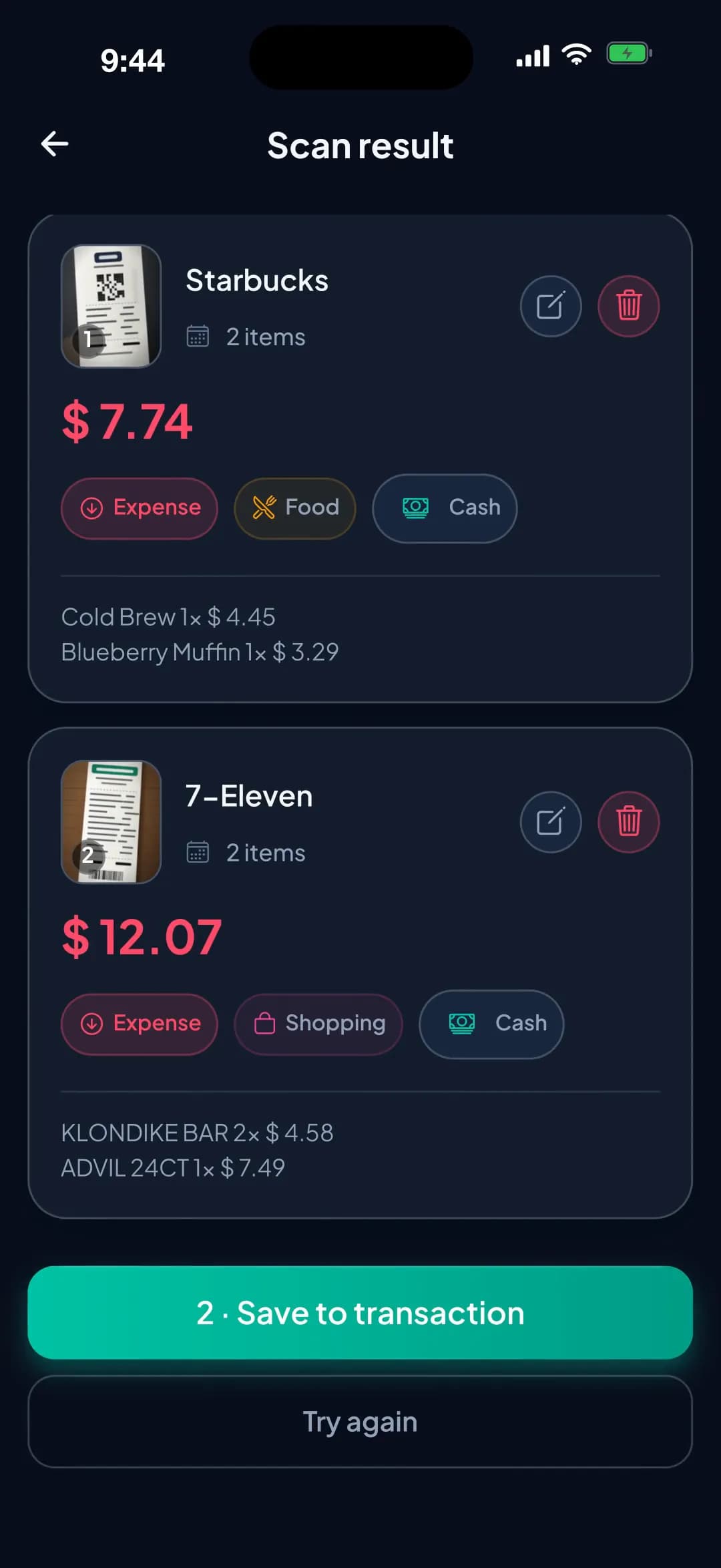
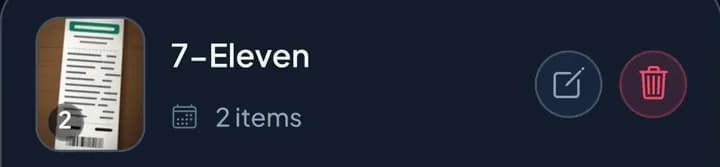
Ibils shows one card per scanned receipt. Check each card against the paper, fix what's off, then tap Save to transaction.
 Ibils teamUpdated 1 min read
Step 1: Add the photos
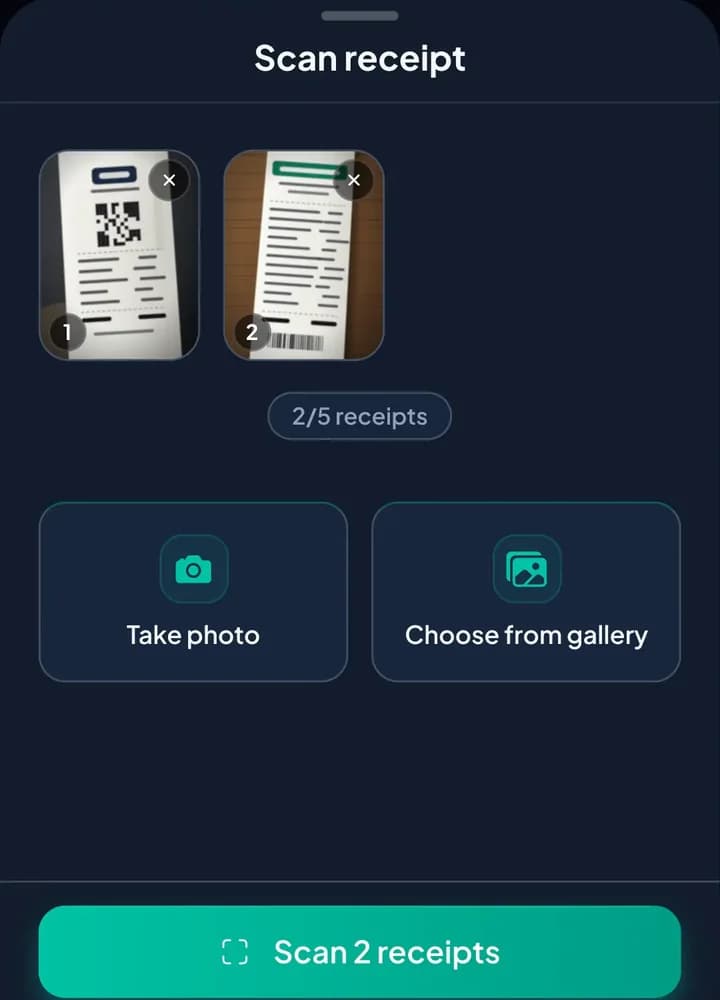
Open Scan receipt, then take a photo or choose one from your gallery.
Step 2: Read the card
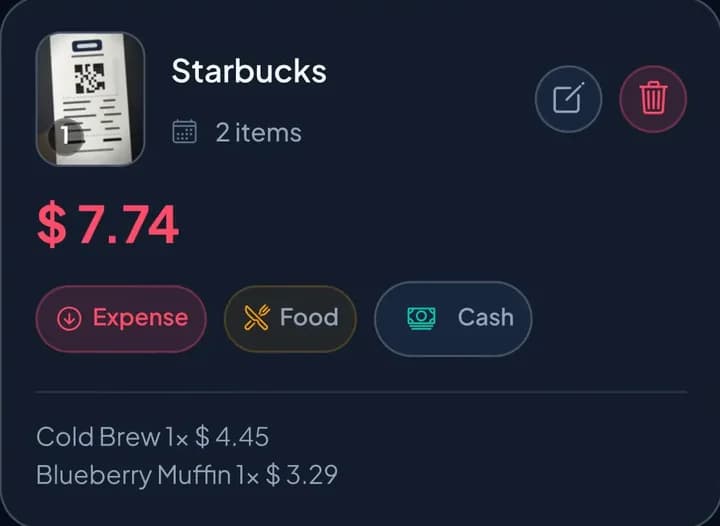
Compare each card's total, category, account and line items with the paper.
Step 3: Fix a wrong field
Tap the pencil to change merchant, total, category, account, date or notes.
Step 4: Drop a mistaken receipt
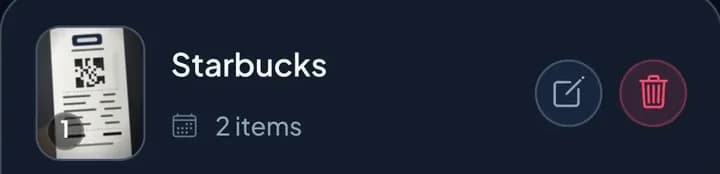
Tap the trash can and confirm to remove that one receipt.
Step 5: Blurry? Scan it again
Tap Try again, lay the receipt flat and take the photo again.

Step 6: Save to transaction
When every card looks right, tap Save to transaction to save them all.

Dates Ibils asks you to check
A receipt dated in the future can't be saved until you change the date. An old date is kept, but your account balance changes today.
Common questions
Can I scan more than one receipt at a time?
Yes. The Scan receipt sheet takes up to five photos, and the result screen shows one card for each receipt. The × on a thumbnail removes a photo before you scan.
What if the total on the card doesn't match the paper?
Tap the pencil on that card and type the right total. Do it before you tap Save to transaction.
Can I use a photo I already took?
Yes. On the Scan receipt sheet, tap Choose from gallery instead of Take photo.
Can I undo a saved receipt?
For about eight seconds after saving, tap Undo on the message at the bottom. After that, delete the transaction from Transactions.
Why does Ibils say a date needs checking?
A receipt dated in the future has to be fixed before it saves. Pick the right date in the edit sheet.